> ## Documentation Index
> Fetch the complete documentation index at: https://docs.mkt-viper.com/llms.txt
> Use this file to discover all available pages before exploring further.
# Trend Navigator
> How to use the Viper Trend Navigator
The Trend Navigator is a background analytics cloud that acts as your macro-trend compass. It visualizes the dominant market structure and serves as dynamic Support and Resistance. By determining the overall market bias, it helps you filter out low-probability signals and focus on trades that align with the heavy flow of capital.
 ### Visual Components
The Navigator works primarily in the background to keep your chart clean, providing context without clutter.
#### The Navigator Cloud
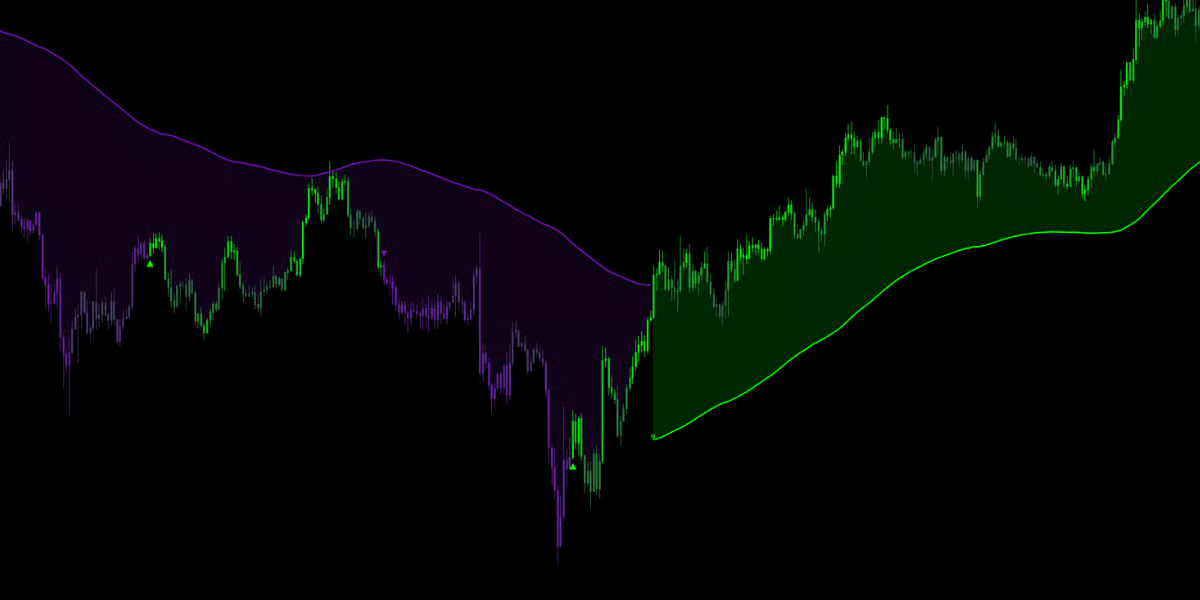
* **Bullish Cloud (Green Zone):** When the cloud is Bullish Color and below price, the macro-trend is **Bullish**. This zone acts as dynamic **Support**. Price pulling back into a Green cloud often presents a "buy the dip" opportunity.
* **Bearish Cloud (Purple/Red Zone):** When the cloud is Bearish Color and above price, the macro-trend is **Bearish**. This zone acts as dynamic **Resistance**. Price rallying into a Red cloud often presents a "sell the rip" opportunity.
#### The Trend Flip Star (✪)
When the Navigator confirms a major shift in market dominance, it plots a small **Star Icon (✪)** on the cloud edge.
* **Star on Bottom:** Confirmed shift to a Bullish Macro-Trend.
* **Star on Top:** Confirmed shift to a Bearish Macro-Trend.
### Visual Components
The Navigator works primarily in the background to keep your chart clean, providing context without clutter.
#### The Navigator Cloud
* **Bullish Cloud (Green Zone):** When the cloud is Bullish Color and below price, the macro-trend is **Bullish**. This zone acts as dynamic **Support**. Price pulling back into a Green cloud often presents a "buy the dip" opportunity.
* **Bearish Cloud (Purple/Red Zone):** When the cloud is Bearish Color and above price, the macro-trend is **Bearish**. This zone acts as dynamic **Resistance**. Price rallying into a Red cloud often presents a "sell the rip" opportunity.
#### The Trend Flip Star (✪)
When the Navigator confirms a major shift in market dominance, it plots a small **Star Icon (✪)** on the cloud edge.
* **Star on Bottom:** Confirmed shift to a Bullish Macro-Trend.
* **Star on Top:** Confirmed shift to a Bearish Macro-Trend.
 ### Optimization & Tuning
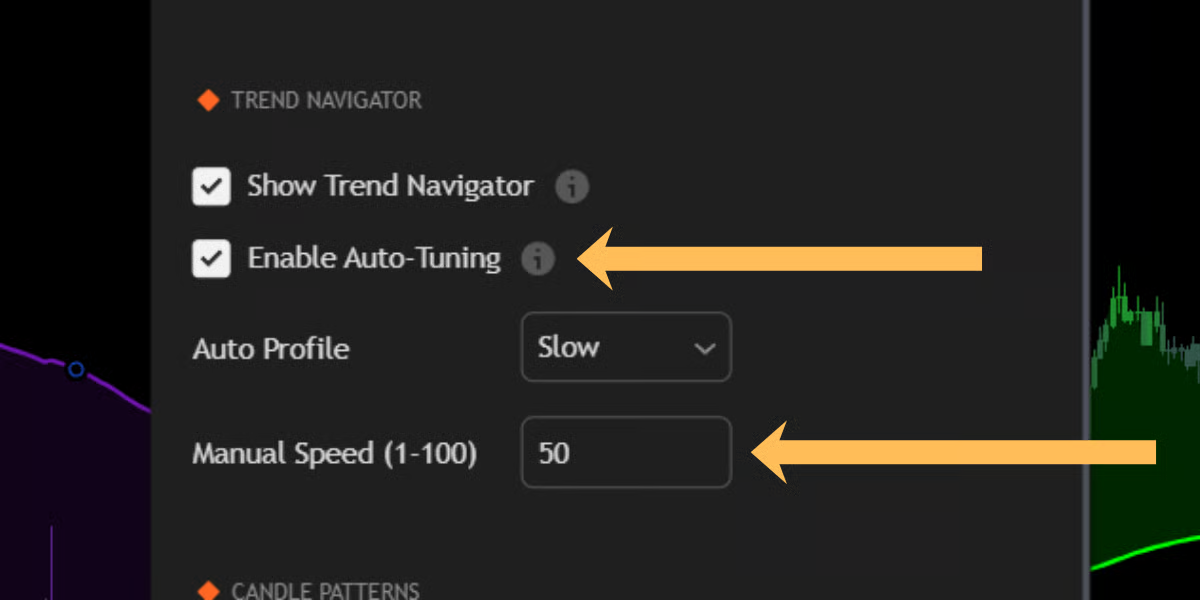
Just like the main Trend Engine, the Navigator features full customization controls found in the **"Trend Navigator"** settings group.
#### Auto-Tuning (Recommended)
Enabled by default, this allows the Synapse Engine to automatically calculate the optimal lookback periods based on a selected profile:
1. **Fast:** Best for lower timeframes (1m - 15m) where trends shift rapidly.
2. **Medium:** The standard setting for hourly and 4H charts.
3. **Slow:** A heavy filter designed for Daily/Weekly charts or for traders who want to remain in a trend for days at a time.
#### Manual Speed
For granular control, disable Auto-Tuning and use the **Manual Speed (1-100)** slider.
* **Lower Values:** Tighter cloud, faster reaction, frequent flips.
* **Higher Values:** Wider cloud, slower reaction, fewer flips.
### Optimization & Tuning
Just like the main Trend Engine, the Navigator features full customization controls found in the **"Trend Navigator"** settings group.
#### Auto-Tuning (Recommended)
Enabled by default, this allows the Synapse Engine to automatically calculate the optimal lookback periods based on a selected profile:
1. **Fast:** Best for lower timeframes (1m - 15m) where trends shift rapidly.
2. **Medium:** The standard setting for hourly and 4H charts.
3. **Slow:** A heavy filter designed for Daily/Weekly charts or for traders who want to remain in a trend for days at a time.
#### Manual Speed
For granular control, disable Auto-Tuning and use the **Manual Speed (1-100)** slider.
* **Lower Values:** Tighter cloud, faster reaction, frequent flips.
* **Higher Values:** Wider cloud, slower reaction, fewer flips.